
Photo by Denny Müller on Unsplash
To create a presigned S3 upload URL with AWS SDK v3, build a PutObjectCommand with the bucket, key and content type, then pass it to getSignedUrl from @aws-sdk/s3-request-presigner with an expiresIn value in seconds. Anyone holding the URL can then PUT one object to that key until it expires, without AWS credentials of their own.
This example is for developers building file uploads: a browser form, a mobile app or a partner system that should send files straight to S3 without passing through your server or holding AWS keys. You’ll get a TypeScript function that signs upload URLs, the least-privilege IAM policy for the signer, the bucket CORS rule browsers need, and fixes for the AccessDenied and SignatureDoesNotMatch errors people hit most.
It belongs to our set of practical AWS SDK v3 examples in TypeScript. For the opposite direction, see how to create a presigned S3 download URL with AWS SDK v3.
How does a presigned S3 upload URL work?
Your backend, which has AWS credentials, signs a specific request: “PUT this key in this bucket, with this content type, until this time”. The signature goes into the URL’s query string. S3 checks the signature and the signer’s permissions when the upload arrives, so the URL can never do more than the signing identity could do itself.
- Client asks your API for an upload URLIt sends the file name and type, never AWS credentials.
- Your API signs a PutObject requestIt picks a safe key, calls
getSignedUrland returns the URL and key. - Client uploads directly to S3An HTTP
PUTwith the file as the body and the sameContent-Type. - Your API records the keyOptionally check that the S3 object exists before using it.
Prerequisites
- Node.js 18 or later, npm and
tsx. @aws-sdk/client-s3and@aws-sdk/s3-request-presigner. The presigner’s source and README live in the s3-request-presigner package in the aws-sdk-js-v3 repository.- An existing bucket and an AWS identity (role or profile) that is allowed to write to it.
Which IAM permissions does the signer need?
Signing happens locally and needs no permission at all. What matters is the permission of the identity whose credentials sign the URL, because S3 evaluates it when the upload arrives. Grant s3:PutObject on the upload prefix only (replace my-bucket):
{
  "Version": "2012-10-17",
  "Statement": [
    {
      "Sid": "AllowPresignedUploadsToPrefix",
      "Effect": "Allow",
      "Action": "s3:PutObject",
      "Resource": "arn:aws:s3:::my-bucket/uploads/*"
    }
  ]
}
If the bucket uses SSE-KMS with a customer managed key, the signer also needs kms:GenerateDataKey on that key. You can cross-check a policy for your own version of the code with the generate IAM policy from TypeScript code tool.
The full script to create a presigned S3 upload URL in TypeScript
// presign-upload.ts
// Creates a presigned URL that lets a client upload one object to S3 with HTTP PUT.
import { S3Client, PutObjectCommand } from "@aws-sdk/client-s3";
import { getSignedUrl } from "@aws-sdk/s3-request-presigner";
import { randomUUID } from "node:crypto";

const region = process.env.AWS_REGION ?? "us-east-1";

const s3 = new S3Client({
  region,
  // Recent SDK versions add a CRC32 checksum to PUT requests by default. The body of a
  // presigned upload is unknown when you sign, so only add checksums when S3 requires them.
  requestChecksumCalculation: "WHEN_REQUIRED",
});

export async function createUploadUrl(
  bucket: string,
  fileName: string,
  contentType: string,
  expiresIn = 900, // seconds (15 minutes)
): Promise<{ url: string; key: string; expiresAt: string }> {
  // Never use the client's file name as the key directly: sanitize it and make it unique.
  const safeName = fileName.replace(/[^\w.-]/g, "_");
  const key = `uploads/${randomUUID()}-${safeName}`;

  const command = new PutObjectCommand({
    Bucket: bucket,
    Key: key,
    ContentType: contentType,
  });

  const url = await getSignedUrl(s3, command, {
    expiresIn,
    // Sign Content-Type too, so an upload with a different type fails with SignatureDoesNotMatch.
    signableHeaders: new Set(["content-type"]),
  });
  const expiresAt = new Date(Date.now() + expiresIn * 1000).toISOString();
  return { url, key, expiresAt };
}

async function main(): Promise<void> {
  const [bucket, fileName = "report.pdf", contentType = "application/pdf"] = process.argv.slice(2);
  if (!bucket) {
    console.error("Usage: npx tsx presign-upload.ts <bucket> [fileName] [contentType]");
    process.exit(1);
  }
  const { url, key, expiresAt } = await createUploadUrl(bucket, fileName, contentType);
  console.log(`Key:        ${key}`);
  console.log(`Expires at: ${expiresAt}`);
  console.log(`URL:\n${url}\n`);
  console.log("Test it with curl:");
  console.log(`curl -X PUT -H "Content-Type: ${contentType}" --upload-file ./${fileName} "${url}"`);
}

main().catch((err) => {
  console.error(err);
  process.exit(1);
});
Two settings in that script prevent the most confusing failures. requestChecksumCalculation: "WHEN_REQUIRED" stops recent SDK versions from adding an x-amz-checksum-crc32 parameter calculated for an empty body, which makes real uploads fail. signableHeaders puts Content-Type into the signature; without it, the presigner signs only the host header and an uploader could send any type.
Migrating older code that called s3.getSignedUrl("putObject", …) from SDK v2? The pattern above is the v3 equivalent. If you run the old file through an online converter, strip any hard-coded keys first; the guide on whether it’s safe to paste AWS code into an AI converter lists what to remove.
How do you choose the expiresIn value?
expiresIn is in seconds, and the default is 900 (15 minutes). The maximum for a Signature Version 4 URL is 604,800 seconds (7 days), according to AWS documentation. Two practical limits come first, though:
- Temporary credentials expire earlier. A URL signed with a role session or SSO credentials stops working when those credentials expire, even if
expiresInis longer. - Shorter is safer. Sign on demand, just before the upload, with a few minutes of validity. A leaked URL is then useful only briefly, and only for one key. A PUT URL can’t limit the file size, though; to cap size and content type in a browser form, upload to S3 from the browser with a presigned POST instead.
How do you run it and upload a file?
npm install @aws-sdk/client-s3 @aws-sdk/s3-request-presigner
npm install --save-dev tsx typescript

AWS_PROFILE=uploader AWS_REGION=us-east-1 npx tsx presign-upload.ts my-bucket report.pdf application/pdf
Sample output
Key:        uploads/4fb6ebf0-a8ea-42ea-b743-82344397cb2f-report.pdf
Expires at: 2026-10-21T10:15:00.108Z
URL:
https://my-bucket.s3.us-east-1.amazonaws.com/uploads/4fb6ebf0-a8ea-42ea-b743-82344397cb2f-report.pdf?X-Amz-Algorithm=AWS4-HMAC-SHA256&X-Amz-Content-Sha256=UNSIGNED-PAYLOAD&X-Amz-Credential=AKIA...%2F20261021%2Fus-east-1%2Fs3%2Faws4_request&X-Amz-Date=20261021T100000Z&X-Amz-Expires=900&X-Amz-Signature=8c33...&X-Amz-SignedHeaders=content-type%3Bhost&x-id=PutObject

Test it with curl:
curl -X PUT -H "Content-Type: application/pdf" --upload-file ./report.pdf "https://my-bucket.s3..."
An empty response with HTTP 200 from curl means the object is in the bucket. Note X-Amz-SignedHeaders=content-type;host: the upload must send exactly application/pdf.
How do you generate a presigned S3 URL for browser upload?
In the browser, request a URL from your API, then send the file with fetch:
async function uploadFile(file) {
  const res = await fetch("/api/upload-url", {
    method: "POST",
    headers: { "Content-Type": "application/json" },
    body: JSON.stringify({ fileName: file.name, contentType: file.type }),
  });
  const { url, key } = await res.json();

  const put = await fetch(url, {
    method: "PUT",
    headers: { "Content-Type": file.type },
    body: file,
  });
  if (!put.ok) throw new Error(`Upload failed: ${put.status} ${await put.text()}`);
  return key;
}
The browser sends a CORS preflight before that PUT, so the bucket needs a CORS rule that allows your origin, the PUT method and the Content-Type header. MDN’s guide to cross-origin resource sharing (CORS) explains the preflight in detail. Save this as cors.json:
{
  "CORSRules": [
    {
      "AllowedOrigins": ["https://app.example.com"],
      "AllowedMethods": ["PUT"],
      "AllowedHeaders": ["Content-Type"],
      "ExposeHeaders": ["ETag"],
      "MaxAgeSeconds": 3000
    }
  ]
}
Apply it with aws s3api put-bucket-cors --bucket my-bucket --cors-configuration file://cors.json.
Troubleshoot S3 presigned upload access denied
AccessDeniedwith a valid-looking URL. The signing identity lackss3:PutObjectfor that key (check the prefix in the policy), a bucket policy denies it, or the SSE-KMS key doesn’t allowkms:GenerateDataKey. The error message alone won’t say which one, so check the identity policy, the bucket policy and the key policy in turn.AccessDenied: Request has expired.expiresInpassed, or the temporary credentials used to sign expired first.SignatureDoesNotMatch. The upload’sContent-Typediffers from the signed one, the client added headers that weren’t signed, or the URL was signed for a different region than the bucket’s.- Upload fails with a checksum error. Your client was created without
requestChecksumCalculation: "WHEN_REQUIRED", so the URL carries a checksum for an empty body. - Browser shows a CORS error but curl works. The bucket’s CORS rule doesn’t match your origin, method or headers exactly. Check for a trailing slash in
AllowedOrigins.
Ask ChatWithCloud instead
Signing URLs belongs in your application code, but ChatWithCloud is useful for the questions around it. Ask “What is the CORS configuration of my-bucket?” or “Does my-bucket use SSE-KMS, and which key?” and it writes AWS SDK for JavaScript v2 code, runs it locally with your profile, and explains the answer; the page on how ChatWithCloud turns questions into SDK calls shows the loop. The same approach works for wider checks, such as which buckets allow public access, covered in the guide to analyze your AWS security posture with an AI CLI. Changes run without a confirmation step, so connect ChatWithCloud using a read-only AWS profile when you’re only inspecting a bucket, and read the ChatWithCloud security and data handling page for what’s sent to the model.
Frequently asked questions
Can one presigned URL upload several files?
No. The URL is bound to one bucket and key. Sign one URL per file, or use a presigned POST (@aws-sdk/s3-presigned-post) when you need a policy such as a key prefix and size limit.
Can I limit the file size of a presigned PUT upload?
A presigned PUT can’t enforce a maximum size by itself. Use a presigned POST with a content-length-range condition, or check the object’s size after upload and delete it if it’s too large.
Does getSignedUrl call AWS?
No. Signing is a local computation with your credentials, so it’s fast and needs no network access. Permissions are checked by S3 when the upload arrives.
How do I upload from Node.js instead of a browser?
If the code already has AWS credentials, skip presigning and upload with PutObjectCommand or the multipart Upload helper, as shown in the TypeScript S3 upload example linked below.
Related guides
 Upload a file to S3 with S3Client in TypeScriptServer-side uploads with PutObject and lib-storage.
Create a presigned S3 download URL with SDK v3GetObject URLs, expiry limits and download file names.
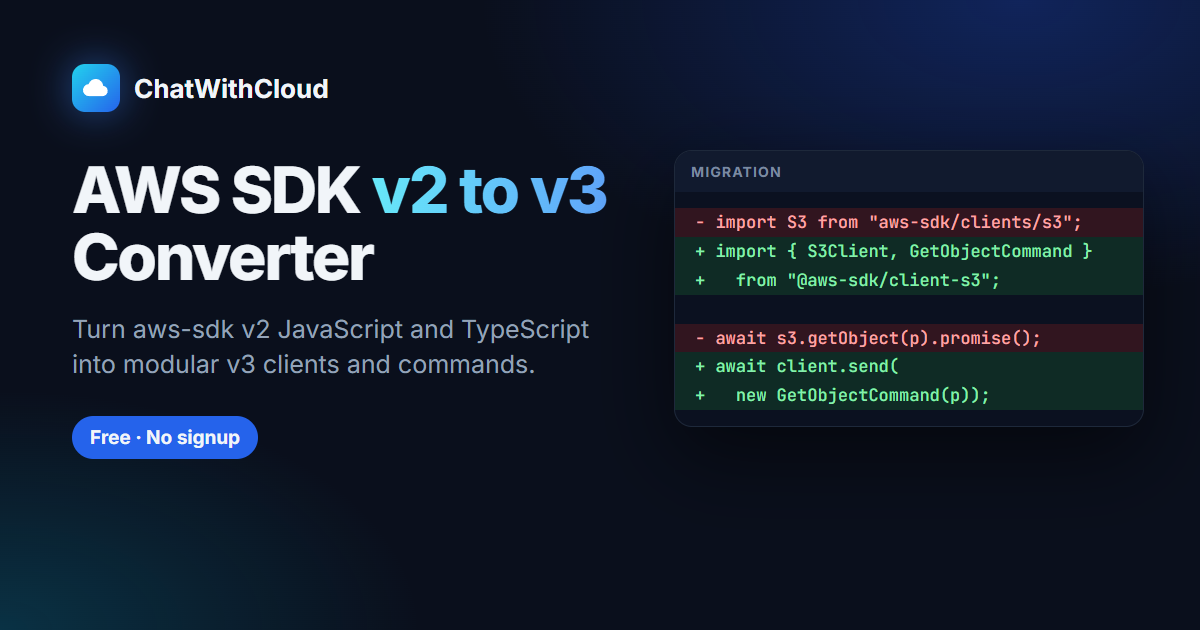 Convert s3.getSignedUrl v2 code to SDK v3Free converter for migrating older presigning code.
How to calculate S3 GET and PUT request costsEstimate what upload traffic adds to your S3 bill.
- Find the Size of Each S3 Bucket and the Largest OneA runnable AWS SDK v3 script that reports every S3 bucket’s size from CloudWatch.
AWS S3 Data Transfer Out CostHow S3 internet egress is priced.
Ask your AWS account in plain English
Your first 15 runs are free, with no OpenAI key needed.
npx chatwithcloud