
Photo by Kevin Ache on Unsplash
To connect ChatWithCloud to an AWS account, you don’t paste keys anywhere. It reads the profiles in ~/.aws/credentials and ~/.aws/config and asks which one to use. Set AWS_PROFILE to skip the picker. Static keys, IAM Identity Center (SSO) and assumed-role profiles all work. For exploring, point it at a dedicated read-only role.
This guide shows how to connect ChatWithCloud to an AWS account the safe way. It’s for engineers who already use the AWS CLI and want to know exactly which identity the tool runs as, and how to keep that identity read-only.
You’ll set up a dedicated IAM role, add a named profile that assumes it, and see how SSO and MFA profiles behave. For the bigger picture of what happens after you ask a question, see how ChatWithCloud works, and once you’re connected, browse ChatWithCloud use cases by role for question ideas.
How does ChatWithCloud connect to your AWS account?
ChatWithCloud uses the same shared config files as the AWS CLI. When it starts, it lists the profiles it finds and asks you to pick one. That choice sets both the identity and the region for the whole session. Your own Node.js code reads the same files through the AWS SDK v3 credential providers fromIni, fromSSO and assume role.
- Credentials stay local. They remain in
~/.aws(or your SSO cache). ChatWithCloud never copies or uploads them. AWS API calls are made from your machine. - Skip the picker with
AWS_PROFILE=name npx chatwithcloud. - Region comes from the profile’s
regionsetting, and defaults tous-east-1if the profile doesn’t set one. - One profile and one region per session. To switch accounts, start a new session.
| Profile type | What’s in ~/.aws |
What to do before starting |
|---|---|---|
| Access keys | aws_access_key_id / aws_secret_access_key in credentials |
Nothing. Prefer a role over long-lived keys. |
| IAM Identity Center (SSO) | sso_session, sso_account_id, sso_role_name |
Run aws sso login --profile name for sso-session profiles. |
| Assumed role | role_arn + source_profile |
The source identity must be allowed to assume the role. |
| Assumed role with MFA | The above plus mfa_serial |
Have your MFA device ready; the CLI prompts for the code. |
Prerequisites
- ChatWithCloud runs via
npx chatwithcloud(Node.js required). If it isn’t set up yet, follow the steps to install ChatWithCloud CLI with npx, Homebrew, pnpm or Bun. - AWS CLI v2, to create the role and test profiles. You can also do the IAM steps in the console.
- An identity that can create IAM roles, for the one-time setup. Day-to-day, ChatWithCloud uses only the read-only role.
Connect ChatWithCloud to an AWS account with a read-only role
The safest setup is a role that exists only for ChatWithCloud. This matters because generated code runs without a confirmation step: whatever the profile is allowed to do, a question can trigger.
- Write a trust policySave the JSON below as
trust.json, replacing the account ID. It lets IAM principals in your account assume the role, provided their own policies allowsts:AssumeRoleon it. Keep the principal in your own account; the script to find IAM roles trusted by external accounts flags roles that trust someone else’s. - Create the roleRun
aws iam create-rolewith that trust policy. - Attach a read-only managed policy
ReadOnlyAccesscovers most questions.ViewOnlyAccessandSecurityAuditare narrower options, compared below. - Add a named profilePoint a profile at the role with
role_arnandsource_profile. - Verify the identity
aws sts get-caller-identity --profile cwc-readonlyshould show anassumed-role/ChatWithCloudReadOnlyARN. - Start ChatWithCloud on it
AWS_PROFILE=cwc-readonly npx chatwithcloud
{
  "Version": "2012-10-17",
  "Statement": [
    {
      "Effect": "Allow",
      "Principal": { "AWS": "arn:aws:iam::123456789012:root" },
      "Action": "sts:AssumeRole"
    }
  ]
}aws iam create-role \
--role-name ChatWithCloudReadOnly \
--assume-role-policy-document file://trust.json
aws iam attach-role-policy \
--role-name ChatWithCloudReadOnly \
--policy-arn arn:aws:iam::aws:policy/ReadOnlyAccess
# Confirm the profile resolves to the new role
aws sts get-caller-identity --profile cwc-readonly[profile cwc-readonly]
role_arn = arn:aws:iam::123456789012:role/ChatWithCloudReadOnly
source_profile = default
role_session_name = chatwithcloud
region = eu-west-1role_session_name is optional, but it becomes part of the session ARN in CloudTrail, so every call the generated code makes is easy to find later. AWS covers these settings in its guide to using an IAM role in the AWS CLI.
How do you use ChatWithCloud with AWS SSO?
IAM Identity Center profiles work. The recommended format puts the portal details in an sso-session block that profiles reference:
[profile dev-readonly]
sso_session = my-sso
sso_account_id = 111122223333
sso_role_name = ReadOnly
region = us-west-2

[sso-session my-sso]
sso_region = us-east-1
sso_start_url = https://my-sso-portal.awsapps.com/start
sso_registration_scopes = sso:account:accessaws sso login --profile dev-readonly
AWS_PROFILE=dev-readonly npx chatwithcloudLog in first: for sso-session profiles, ChatWithCloud expects a valid SSO token in the cache. When the token expires, calls start failing; run aws sso login again and start a new session. Ask your Identity Center admin for a read-only permission set rather than using your usual developer one. The full format is in AWS’s IAM Identity Center configuration guide.
Assume-role profiles that require MFA
If your organization requires MFA to assume roles, add a condition to the role’s trust policy and an mfa_serial line to the profile. ChatWithCloud prompts for the MFA code in the terminal when the session starts.
{
  "Version": "2012-10-17",
  "Statement": [
    {
      "Effect": "Allow",
      "Principal": { "AWS": "arn:aws:iam::123456789012:user/anika" },
      "Action": "sts:AssumeRole",
      "Condition": { "Bool": { "aws:MultiFactorAuthPresent": "true" } }
    }
  ]
}[profile cwc-readonly-mfa]
role_arn = arn:aws:iam::123456789012:role/ChatWithCloudReadOnly
source_profile = anika
mfa_serial = arn:aws:iam::123456789012:mfa/anika
region = us-east-1mfa_serial takes the ARN of the MFA device (or the serial number of a hardware token). Without it, a trust policy that requires MFA rejects the AssumeRole call with AccessDenied.
Which permissions should the profile have?
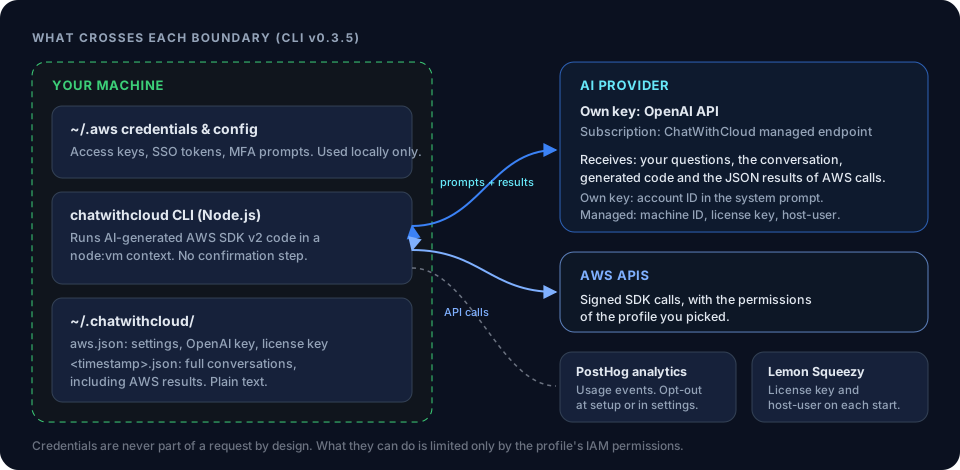
Anything the role can read, the model can see, because query results are sent to it to write the answer. Pick the narrowest policy that answers your questions. If you write a custom policy instead of a managed one, review the IAM policy for least privilege before you attach it.
| AWS managed policy | What AWS says it grants | Use it for |
|---|---|---|
ViewOnlyAccess |
List*, Describe*, Get*, View* and Lookup* on resources and basic metadata, not resource content |
Inventory with the least data exposure |
SecurityAudit |
View configuration data for many services and review their logs | Security reviews |
ReadOnlyAccess |
Read access to every resource, including data in storage services such as S3 and DynamoDB | Broad questions, where that data may be shared with the model |
Descriptions are from AWS’s documentation on managed policies for job functions (checked September 2026). The SecurityAudit row is the one to start from if you want to analyze your AWS security posture with an AI CLI.
Cost questions call Cost Explorer, which needs ce: permissions, the same as an SDK script to get last month’s AWS cost broken down by service. If your chosen policy doesn’t include them, add a small inline policy:
{
  "Version": "2012-10-17",
  "Statement": [
    {
      "Sid": "CostExplorerRead",
      "Effect": "Allow",
      "Action": [
        "ce:GetCostAndUsage",
        "ce:GetCostForecast",
        "ce:GetDimensionValues"
      ],
      "Resource": "*"
    }
  ]
}
With those ce: permissions in place, you can ask AI why your AWS bill increased straight from the terminal. The ChatWithCloud security model and data flow goes further on what’s sent to the model and what’s stored locally.
Regions and multiple accounts
Questions run against the profile’s region unless the generated code explicitly targets others, so asking “in every region” is the way to widen a search within one session. For a region you use often, create a second profile with the same role_arn and a different region. The same rule applies when you list AWS resources with natural language across regions.
For multiple accounts, create one profile per account (each with its own read-only role or SSO permission set) and start a separate session for each. ChatWithCloud doesn’t merge results across accounts in one session.
Troubleshooting connection problems
These fixes cover profile and credential errors. For problems inside the account itself, such as failing services or alarms, see how to troubleshoot AWS infrastructure with an AI CLI.
Your profile doesn’t appear in the picker
Check spelling and file syntax. In ~/.aws/config a profile header is [profile name]; in ~/.aws/credentials it’s just [name]. aws configure list-profiles shows what the AWS tooling can see.
AccessDenied when calling AssumeRole
Either the role’s trust policy doesn’t include your source identity, the source identity lacks sts:AssumeRole on the role ARN, or the trust policy requires MFA and the profile has no mfa_serial. Test with aws sts get-caller-identity --profile name to separate profile problems from ChatWithCloud problems.
SSO calls fail after working earlier
The SSO token or the role credentials have expired. Run aws sso login --profile name and start a new session.
Answers say resources don’t exist
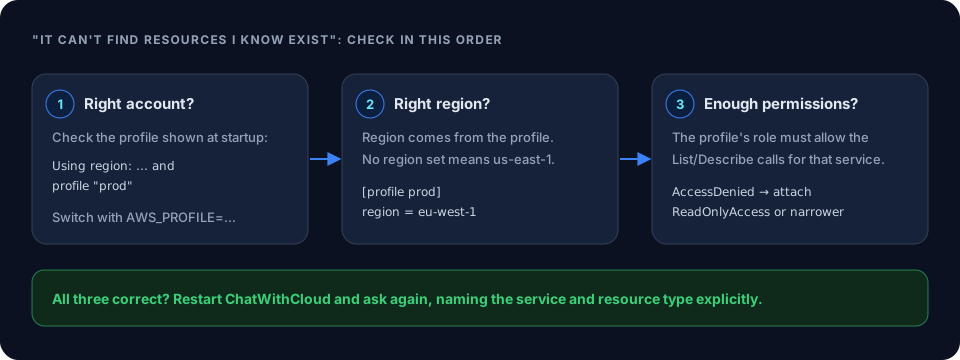
It’s almost always the account, region or permissions, in that order. Confirm the account with get-caller-identity, check the profile’s region, then make sure the role can list that resource type. The example to check AWS assumed role permissions of your current IAM role prints its attached and inline policies. If a specific call on the read-only role fails with AccessDenied, the steps to troubleshoot AWS IAM access denied errors help you find the missing permission.
Limits of this setup
Whichever profile type you use to connect ChatWithCloud to your AWS account, the same limits apply:
- Changes run without confirmation. IAM is the only guardrail, so keep write access in a separate profile.
- One profile and one region per session; no cross-account view in a single conversation.
- Generated code uses AWS SDK for JavaScript v2, which reached end-of-support on 8 September 2025. Services added after that may be unreachable.
- The model can misread results. For permissions or costs, ask it to show which API calls it made.
Frequently asked questions
Does ChatWithCloud store my AWS access keys?
No. It reads profiles from ~/.aws/credentials and ~/.aws/config and uses them on your machine. It never copies or uploads your credentials. Its own settings live in ~/.chatwithcloud/aws.json.
How do I configure AWS credentials for ChatWithCloud?
Configure them exactly as you would for the AWS CLI, with aws configure, aws configure sso, or by editing ~/.aws/config. ChatWithCloud lists those profiles at startup, or uses the one named in AWS_PROFILE.
Can I use ChatWithCloud with AWS SSO?
Yes. IAM Identity Center profiles work. For profiles that use an sso-session block, run aws sso login --profile name before you start the CLI.
How do I set up ChatWithCloud with an assumed role?
Add a profile with role_arn and source_profile to ~/.aws/config, then start with AWS_PROFILE=that-profile npx chatwithcloud. If the role requires MFA, add mfa_serial and enter the code when prompted.
Can one session query several AWS accounts?
No. Each session uses one profile and one region. Start a new session with a different profile to query another account.
Related guides
 ChatWithCloud security modelCredentials, data sent to the model, and a read-only checklist.
How to install ChatWithCloud CLInpx, Homebrew, pnpm and Bun, plus the four first-run questions.
 ChatWithCloud FAQProfile errors, SSO prompts and other common questions.
 IAM policy generator for TypeScriptDraft a least-privilege policy from the AWS SDK calls in your code.
Review a Generated IAM Policy for Least PrivilegeA five-pass checklist for turning a generated IAM policy into a least-privilege one.
Troubleshoot AWS IAM Access Denied Errors Step by StepRead the error, confirm the caller, find the missing IAM action, rule out explicit…
Ask your AWS account in plain English
Your first 15 runs are free, with no OpenAI key needed.
npx chatwithcloud