
Photo by David Trinks on Unsplash
To check AWS root account MFA from code, call IAM GetAccountSummary: AccountMFAEnabled is 1 when the root user has MFA, and AccountAccessKeysPresent is 1 when root access keys exist. For detail, generate the IAM credential report and read the root row, which shows whether each root key is active, when it was last used and when the root password last signed in.
The root user can do anything in the account, including closing it, and no IAM policy in the account can restrict it. That makes three things worth checking in every account you own: MFA on the root user, no root access keys, and no unexplained root sign-ins. This example is for engineers who want to check AWS root account MFA and keys from a script instead of clicking through the console of each account.
You’ll get a read-only TypeScript script for the AWS SDK for JavaScript v3 that grades each root credential. The script to find IAM users without MFA covers IAM users only, because the root user isn’t an IAM user and never appears in ListUsers. Run both for the full picture. For the IAM users themselves, find IAM users with directly attached policies to see who holds permissions outside a group. Their console passwords follow one account-wide rule set, which the script to check the IAM account password policy compares with CIS guidance. IAM users can also hold SSH public keys and service-specific credentials, which the script to find IAM users with SSH keys and service-specific credentials lists.
What should a healthy root user look like?
AWS’s root user best practices boil down to a short list. The script checks each item and gives it a severity:
| Credential | Healthy state | Script verdict if not |
|---|---|---|
| MFA | Enabled while a root password exists | CRITICAL |
| Access keys | None | CRITICAL if active, HIGH if inactive |
| X.509 signing certificates | None | MEDIUM |
| Password sign-ins | Rare and explained | MEDIUM if within --days (default 90) |
| MFA type | Hardware key or passkey | INFO when only a virtual MFA device is assigned |
AWS now requires MFA on the root user of standalone, management and member accounts: if it isn’t set up, the root user must register a device within 35 days of the first console sign-in attempt. You can register up to eight MFA devices on the root user, and AWS recommends more than one so a lost phone doesn’t lock you out. The check still matters, because older accounts and accounts nobody signs in to can sit without MFA for years.
The CIS Amazon Web Services Foundations Benchmark has matching recommendations. As mapped in AWS Security Hub, v5.0.0 numbers them 1.3 (no root access keys), 1.4 (root MFA) and 1.5 (hardware MFA for root); v3.0.0 uses 1.4, 1.5 and 1.6.
What if the root user has no password at all?
With AWS Organizations you can centralize root access and delete the root password, access keys, signing certificates and MFA from member accounts. New accounts created in the organization have no root credentials by default. An account like that reports no MFA and no password, which is the most secure state, so the script treats it as OK instead of a missing-MFA failure. With --org, run from the management account or the delegated administrator for IAM, the script also lists which centralized root access features are on: RootCredentialsManagement and RootSessions.
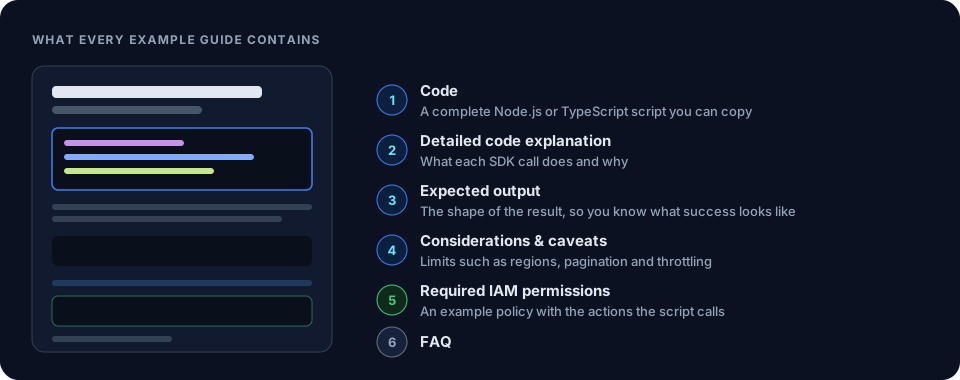
What does the script do?
- Identifies the account
GetCallerIdentityreturns the account ID for the report header. - Reads the account summary
GetAccountSummaryreturnsAccountMFAEnabled,AccountAccessKeysPresent,AccountPasswordPresentandAccountSigningCertificatesPresentas 0 or 1. - Reads the credential report
GenerateCredentialReportuntil the state isCOMPLETE, thenGetCredentialReport. The CSV row whose ARN ends in:root(user<root_account>) holdspassword_last_used,access_key_1_active,access_key_1_last_used_dateand the same columns for key 2. - Checks the MFA type
ListVirtualMFADeviceswithAssignmentStatus: "Assigned"; a device whose user ARN ends in:rootmeans the root user has an authenticator app registered. - Grades and exitsA table of checks and exit code 2 when anything is CRITICAL or HIGH.
Prerequisites
- Node.js 18 or later, npm and
tsx, plus@aws-sdk/client-iamand@aws-sdk/client-sts. - A profile set up as described in AWS SDK v3 credential providers like fromIni and fromSSO. IAM is global, so any Region works.
- An IAM identity in the account, not the root user. You never need root credentials to audit root.
Which IAM permissions does it need?
All four IAM actions are read-only, though GenerateCredentialReport refreshes the account’s single stored report. The second statement is only for --org.
{
  "Version": "2012-10-17",
  "Statement": [
    {
      "Sid": "RootUserChecks",
      "Effect": "Allow",
      "Action": [
        "iam:GetAccountSummary",
        "iam:GenerateCredentialReport",
        "iam:GetCredentialReport",
        "iam:ListVirtualMFADevices"
      ],
      "Resource": "*"
    },
    {
      "Sid": "CentralizedRootAccessOptional",
      "Effect": "Allow",
      "Action": "iam:ListOrganizationsFeatures",
      "Resource": "*"
    }
  ]
}
No statement grants access to the root user itself: every call here reads account-level metadata. To confirm what the profile you’re using can do, run the script to list the permissions of your current assumed role.
The script to check AWS root account MFA and access keys
// check-root-account-mfa-and-access-keys.ts
// Checks the AWS account root user: MFA, access keys, signing certificates, whether a password exists and
// when it was last used. Uses GetAccountSummary, the IAM credential report and ListVirtualMFADevices.
// With --org, also shows which centralized root access features are on (management or delegated admin account).
// Report-only: it never changes the root user.
// Usage: npx tsx check-root-account-mfa-and-access-keys.ts [--days=90] [--org]
import {
  IAMClient,
  GetAccountSummaryCommand,
  GenerateCredentialReportCommand,
  GetCredentialReportCommand,
  ListOrganizationsFeaturesCommand,
  paginateListVirtualMFADevices,
} from "@aws-sdk/client-iam";
import { STSClient, GetCallerIdentityCommand } from "@aws-sdk/client-sts";

const args = process.argv.slice(2);
const checkOrg = args.includes("--org");
const recentDays = Number(args.find((a) => a.startsWith("--days="))?.split("=")[1] ?? "90");

type Severity = "CRITICAL" | "HIGH" | "MEDIUM" | "INFO" | "OK";
interface Check {
  Check: string;
  Result: string;
  Severity: Severity;
}

const iam = new IAMClient({});
const sleep = (ms: number) => new Promise((resolve) => setTimeout(resolve, ms));

// The credential report is CSV with no quoted fields; the first line is the header.
function parseCsv(text: string): Record<string, string>[] {
  const [header, ...lines] = text.trim().split(/\r?\n/);
  const cols = header.split(",");
  return lines.map((line) => {
    const cells = line.split(",");
    return Object.fromEntries(cols.map((c, i) => [c, cells[i] ?? ""]));
  });
}

// GenerateCredentialReport returns STARTED, INPROGRESS or COMPLETE. IAM reuses a report younger than 4 hours.
async function rootRow(): Promise<Record<string, string> | undefined> {
  for (let attempt = 0; attempt < 15; attempt++) {
    const { State } = await iam.send(new GenerateCredentialReportCommand({}));
    if (State === "COMPLETE") break;
    await sleep(2000);
  }
  const report = await iam.send(new GetCredentialReportCommand({}));
  const text = new TextDecoder().decode(report.Content ?? new Uint8Array());
  return parseCsv(text).find((row) => row.arn?.endsWith(":root"));
}

function daysAgo(value: string | undefined): number | undefined {
  if (!value || !/^\d{4}-/.test(value)) return undefined; // N/A, no_information, not_supported
  return Math.floor((Date.now() - Date.parse(value)) / 86_400_000);
}

async function rootHasVirtualMfa(): Promise<boolean> {
  for await (const page of paginateListVirtualMFADevices({ client: iam }, { AssignmentStatus: "Assigned" })) {
    if ((page.VirtualMFADevices ?? []).some((d) => d.User?.Arn?.endsWith(":root"))) return true;
  }
  return false;
}

async function orgFeatures(): Promise<string> {
  try {
    const out = await iam.send(new ListOrganizationsFeaturesCommand({}));
    const enabled = out.EnabledFeatures ?? [];
    return enabled.length ? enabled.join(", ") : "none enabled";
  } catch (err) {
    return `unavailable (${err instanceof Error ? err.name : String(err)})`;
  }
}

async function main(): Promise<void> {
  const account = (await new STSClient({}).send(new GetCallerIdentityCommand({}))).Account ?? "?";
  const summary = (await iam.send(new GetAccountSummaryCommand({}))).SummaryMap ?? {};
  const mfaOn = summary.AccountMFAEnabled === 1;
  const passwordPresent = summary.AccountPasswordPresent === 1;
  const keysPresent = summary.AccountAccessKeysPresent === 1;
  const certsPresent = summary.AccountSigningCertificatesPresent === 1;
  const row = await rootRow();
  const checks: Check[] = [];

  // MFA
  if (mfaOn) {
    const virtual = await rootHasVirtualMfa();
    checks.push({
      Check: "Root MFA",
      Result: virtual ? "enabled (a virtual MFA device is assigned)" : "enabled (hardware key, passkey or TOTP token)",
      Severity: virtual ? "INFO" : "OK",
    });
  } else if (passwordPresent) {
    checks.push({ Check: "Root MFA", Result: "NOT enabled and the root user has a password", Severity: "CRITICAL" });
  } else {
    checks.push({ Check: "Root MFA", Result: "no MFA, but no root password either (credentials removed)", Severity: "OK" });
  }

  // Access keys: the summary says whether any exist; the report says whether they're active and used.
  for (const n of [1, 2]) {
    if (row?.[`access_key_${n}_active`]?.toLowerCase() === "true") {
      const used = row[`access_key_${n}_last_used_date`];
      const service = row[`access_key_${n}_last_used_service`];
      checks.push({
        Check: `Root access key ${n}`,
        Result: `ACTIVE, created ${row[`access_key_${n}_last_rotated`]?.slice(0, 10)}, last used ${used === "N/A" ? "never" : `${used?.slice(0, 10)} (${service})`}`,
        Severity: "CRITICAL",
      });
    }
  }
  if (keysPresent && !checks.some((c) => c.Check.startsWith("Root access key"))) {
    checks.push({ Check: "Root access keys", Result: "present but inactive; delete them", Severity: "HIGH" });
  }
  if (!keysPresent) checks.push({ Check: "Root access keys", Result: "none", Severity: "OK" });

  // Signing certificates are another long-term root credential.
  checks.push(certsPresent
    ? { Check: "Root signing certificates", Result: "present; delete them unless a legacy tool needs them", Severity: "MEDIUM" }
    : { Check: "Root signing certificates", Result: "none", Severity: "OK" });

  // Password and last console sign-in.
  const lastUsed = row?.password_last_used;
  const age = daysAgo(lastUsed);
  checks.push({
    Check: "Root password",
    Result: passwordPresent ? `present, last used ${age === undefined ? lastUsed ?? "unknown" : `${lastUsed?.slice(0, 10)} (${age} days ago)`}` : "none",
    Severity: age !== undefined && age <= recentDays ? "MEDIUM" : passwordPresent ? "INFO" : "OK",
  });

  if (checkOrg) checks.push({ Check: "Centralized root access", Result: await orgFeatures(), Severity: "INFO" });

  console.log(`Account ${account} root user (${row?.arn ?? "row not found in credential report"})`);
  console.table(checks);
  const serious = checks.filter((c) => c.Severity === "CRITICAL" || c.Severity === "HIGH").length;
  console.log(`${serious} CRITICAL/HIGH finding(s). Root sign-ins within ${recentDays} days are flagged MEDIUM.`);
  if (serious) process.exitCode = 2;
}

main().catch((err) => {
  console.error(err instanceof Error ? `${err.name}: ${err.message}` : err);
  process.exit(1);
});
How do you run it?
npm install @aws-sdk/client-iam @aws-sdk/client-sts
npm install --save-dev tsx typescript

# One account, flag root sign-ins in the last 90 days
AWS_PROFILE=security-audit npx tsx check-root-account-mfa-and-access-keys.ts

# From the management account: also show centralized root access, flag sign-ins in the last 30 days
AWS_PROFILE=org-admin npx tsx check-root-account-mfa-and-access-keys.ts --org --days=30
Root credentials belong to one account, so run the script once per account, for example in a loop over profiles. The exit code makes it easy to fail a scheduled job when an account regresses.
Sample output
Account 111122223333 root user (arn:aws:iam::111122223333:root)
┌─────────┬─────────────────────────────┬─────────────────────────────────────────────────────────┬────────────┐
│ (index) │ Check                       │ Result                                                  │ Severity   │
├─────────┼─────────────────────────────┼─────────────────────────────────────────────────────────┼────────────┤
│ 0       │ 'Root MFA'                  │ 'enabled (a virtual MFA device is assigned)'            │ 'INFO'     │
│ 1       │ 'Root access key 1'         │ 'ACTIVE, created 2019-03-14, last used 2026-08-30 (s3)' │ 'CRITICAL' │
│ 2       │ 'Root signing certificates' │ 'none'                                                  │ 'OK'       │
│ 3       │ 'Root password'             │ 'present, last used 2026-09-02 (26 days ago)'           │ 'MEDIUM'   │
└─────────┴─────────────────────────────┴─────────────────────────────────────────────────────────┴────────────┘
1 CRITICAL/HIGH finding(s). Root sign-ins within 90 days are flagged MEDIUM.
The account and dates are illustrative. An active root key that was used last month is the finding to act on today: something, probably an old script or a server, is signing S3 requests with credentials that can’t be limited by any policy.
How do you fix each finding?
- Active root access key. Find what uses it first: the
last used servicecolumn and CloudTrail events withuserIdentity.typeofRootpoint to the caller. Move that workload to an IAM role, then deactivate the key, wait, and delete it from the root user’s Security credentials page. - No root MFA. Sign in as root and register a FIDO security key or passkey, plus a second device kept somewhere else.
- Recent root sign-ins. Compare the date with your change records. Only a short list of tasks need root; everything else should use an administrative IAM Identity Center user or role. The guide to analyze your AWS security posture with an AI CLI shows how to follow up on questions like this.
- Member accounts in an organization. Centralize root access, remove the member root credentials and use privileged root sessions for the rare root-only task.
Root sign-ins leave CloudTrail events, so make sure a trail is recording them with the script to check CloudTrail is enabled in every AWS Region. GuardDuty can also alert on root credential use; the script to check GuardDuty is enabled in all Regions confirms it’s on.
Troubleshooting
CredentialReportNotReadyExceptionorCredentialReportNotPresentException. The report was still being generated when the loop gave up. Wait a minute and run the script again.- A key you just deleted still shows. IAM reuses a credential report that is less than 4 hours old.
GetAccountSummaryis live, so trust it for presence and the report for dates. - MFA is on but the script says “virtual”. A root user can have several devices. The INFO line only means one of them is an authenticator app; FIDO keys and passkeys don’t show up in
ListVirtualMFADevices. --orgprints “unavailable (AccountNotManagementOrDelegatedAdministrator)”. Run it from the management account or the delegated administrator for IAM.ServiceAccessNotEnabledmeans trusted access for IAM isn’t turned on in Organizations.
An AccessDenied on any call means the profile lacks the policy above; the guide to troubleshoot AWS IAM access denied errors walks through the usual causes.
Ask ChatWithCloud instead
ChatWithCloud turns a plain-English question into AWS SDK for JavaScript v2 code, runs it on your machine with your AWS profile, and sends the JSON result to the AI model to write the answer. Ask “Does the root user in this account have MFA and any access keys?” and it can call the same GetAccountSummary operation. Generated code runs without a confirmation step, so connect ChatWithCloud to a read-only AWS profile and review the ChatWithCloud security model and data flow before you start. One profile per session means one account per session, so it suits a quick question; to check AWS root account MFA across many accounts, loop the script over your profiles.
Frequently asked questions
How do I check if MFA is enabled on the AWS root account with the CLI?
Run aws iam get-account-summary and read AccountMFAEnabled in SummaryMap: 1 means MFA is on. Any IAM identity with iam:GetAccountSummary can run it.
How do I know if the root user has access keys?
AccountAccessKeysPresent in the same summary is 1 when root keys exist. The credential report’s root row says whether each key is active and when it was last used.
How can I see when the root user last signed in?
The password_last_used column of the root row in the IAM credential report. CloudTrail ConsoleLogin events for the root identity give the full history.
Is a virtual MFA device good enough for the root user?
It satisfies the basic MFA requirement. CIS and Security Hub also have a separate, stricter hardware MFA check for the root user, which a virtual device fails.
Related guides
 Find IAM users without MFAThe same check for every IAM user.
- Find old and unused IAM access keysLong-lived keys beyond the root user.
- Check CloudTrail in every RegionKeep a record of every root sign-in.
- Find IAM policies with admin accessThe next most powerful identities.
- Check GuardDuty in all RegionsGet alerted when root credentials are used.
Analyze AWS security posture with AIAsk follow-up security questions in English.
Ask your AWS account in plain English
Your first 15 runs are free, with no OpenAI key needed.
npx chatwithcloud