AI CLI for AWS · Under the hood
How ChatWithCloud Works
ChatWithCloud is a command-line tool that answers questions about your AWS account in plain English. When you ask something, an AI model writes AWS SDK code, the code runs on your machine with your own AWS credentials, and the model turns the result into an answer. This page walks through each step, including what is sent to the model and what stays on your computer.
npx chatwithcloudInstall and start the CLI
ChatWithCloud is published on npm as chatwithcloud and needs Node.js. The quickest way to try it is npx chatwithcloud, which downloads and runs it without a global install. Homebrew, pnpm and Bun work too, using the commands in the box above. After a global install, the command is available both as chatwithcloud and as the shorter alias cwc.
You don’t need an OpenAI API key to start: the first 15 runs are free. After that you either add your own key with a lifetime license or switch to the managed subscription. See pricing for the difference.
First-run setup: four questions
The first time you run it, ChatWithCloud asks four questions and saves your answers to ~/.chatwithcloud/aws.json.
- AWS experience level
- Beginner, Intermediate or Pro. This is added to the model’s instructions, so answers are pitched at your level: more explanation for beginners, more direct for pros.
- AI model
- GPT-4o, GPT-4o Mini, GPT-4 Turbo or GPT-4. This model is used when you bring your own OpenAI key.
- OpenAI API key
- Optional. Your key is used once you activate a lifetime license. During the trial and on the subscription, requests go through ChatWithCloud’s managed service.
- Anonymous analytics
- Yes or no. Choosing no disables the CLI’s usage analytics.
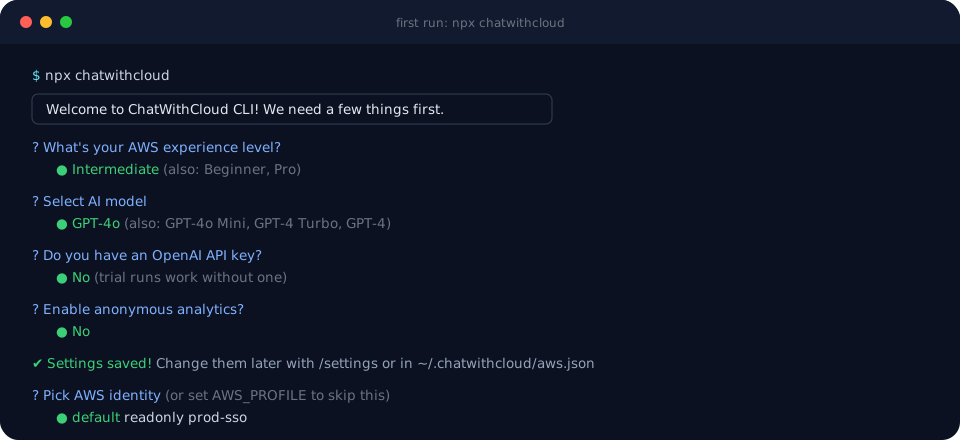
Choosing which AWS account and role to use
ChatWithCloud doesn’t ask for AWS keys. It reads the profiles already in your ~/.aws/credentials and ~/.aws/config files, the same ones the AWS CLI uses, and asks which one to use.
- Skip the picker by setting the
AWS_PROFILEenvironment variable, for exampleAWS_PROFILE=readonly npx chatwithcloud. - Region comes from the profile’s
regionsetting and defaults tous-east-1if none is set. - IAM Identity Center (SSO) profiles work. For profiles with an
sso_start_url, the CLI starts the device sign-in itself and shows a link to open in your browser. For profiles that use ansso-sessionblock, runaws sso loginfirst. See AWS’s guide to configuring SSO profiles. - Profiles that assume a role with MFA prompt you for the MFA code in the terminal.
Whatever permissions that profile has, ChatWithCloud has. That’s the most important setting you choose, and the security page explains how to use a read-only role. For profile file syntax, see AWS’s config and credentials file reference.
What happens when you ask a question
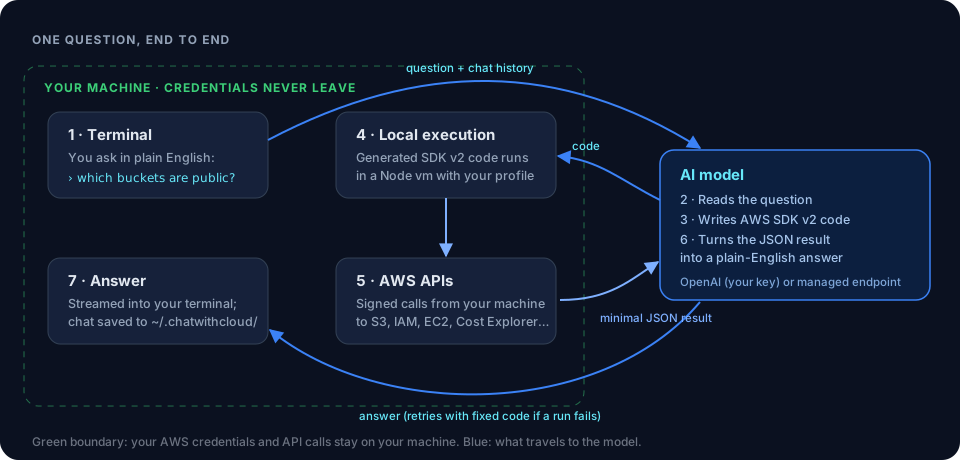
Each question goes through the same loop:
- You type a question in plain English, such as “Which S3 buckets are public?”
- The question goes to the AI model, together with the conversation so far and instructions to answer by writing AWS SDK for JavaScript v2 code.
- The model writes a short script that calls the AWS APIs needed to answer, and returns only the minimal data required.
- The script runs on your machine inside a Node.js vm context, using the AWS profile you picked. The API calls go straight from your computer to AWS.
- The JSON result is sent back to the model. If the script fails, the error goes back instead and the model retries with corrected code.
- The model writes the answer, which streams into your terminal, and you can ask a follow-up.
The code the model writes is the same kind you’ll find in the practical AWS SDK examples. The difference is that the CLI writes it for your exact question and runs it for you. To see how that plays out for costs, security audits and troubleshooting, browse the use cases.
Your own OpenAI key vs the managed subscription
The loop above is identical either way. What changes is where step 2 happens.
| Your own OpenAI key | Managed (trial or subscription) | |
|---|---|---|
| Model requests go to | OpenAI directly, billed to your key | ChatWithCloud’s managed endpoint |
| Model used | The one you picked in setup | Chosen by the service |
| Context sent with each request | Conversation, your AWS account ID and experience level | Conversation, plus license key, machine ID and host and user name for licensing |
| Plan | Lifetime license | Free trial, then $19/month |
Licenses are issued and checked through Lemon Squeezy. The CLI checks your license key when it starts. Compare the plans on the pricing page.
What ChatWithCloud stores on your machine
- Settings in
~/.chatwithcloud/aws.json: experience level, model, analytics choice, license key and, if you added one, your OpenAI API key. - Conversations as JSON files in
~/.chatwithcloud/, one per session. Each file holds your questions, the generated code, the results and the answers. - Your AWS credentials stay where they already are, in
~/.awsor your SSO cache. ChatWithCloud reads them but doesn’t copy them anywhere.
Because conversation logs can contain resource names and query results, treat ~/.chatwithcloud/ like any other file holding account data.
Follow-up questions and changing settings
A session is a conversation. After an answer, you can ask “which of those are in production?” or “stop the ones tagged dev”, and the model reuses the context and earlier results. Type /settings at the prompt to rerun setup and change your experience level, model, OpenAI key or analytics choice without leaving the session. To switch AWS profiles, start a new session.
Limits worth knowing
Read these before connecting a production account
- Generated code runs without asking first. The model is told to proceed without confirmation, so a request like “delete the old snapshots” is carried out straight away. Use a read-only profile unless you mean to make changes. See how to set that up.
- It uses AWS SDK for JavaScript v2, which reached end-of-support on September 8, 2025. Services and API features added to AWS since then may not be reachable.
- One profile and region per session. Questions run against the region in your profile unless the generated code explicitly targets others.
- The model can be wrong. It retries when code fails, but code that runs without errors can still answer a slightly different question. For anything important, such as costs or permissions, ask it to show its working, or check the result yourself.
More questions? The FAQ covers setup, billing and security in detail.
Try it on your own account
Start with a read-only profile and ask “what did I spend last month?” The first 15 runs are free, and no OpenAI key is needed.